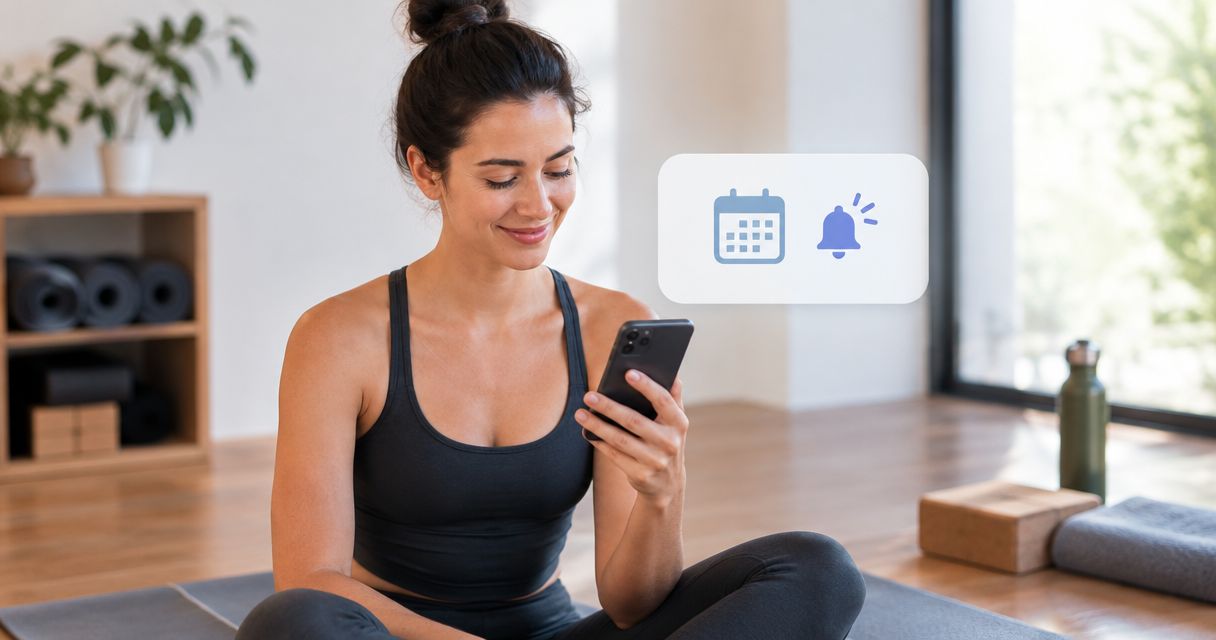
Instead of checking your booking repeatedly, set up a Unified Hot Yoga class reminder in your calendar so your phone prompts you to prepare and leave. Start with a confirmed reservation, add timed notifications, and check the booking again whenever your plans change.
- For Unified Hot Yoga students, calendar notifications are a practical backup for confirmed class bookings.
- Set your class reminder after booking; a calendar event does not reserve your place.
- Use separate preparation and departure alerts for hot yoga, Hot Pilates, Barre, or Reformer Pilates.
- Update your calendar whenever your reservation changes; a copied event is not automatically synchronized.
Why this matters
A reminder solves the problem of remembering to attend. It does not solve booking, cancellation, or checking whether a class has changed. Keeping those jobs separate prevents a familiar mistake: seeing an event on your phone and assuming the reservation is still correct.
Unified Hot Yoga offers Vinyasa, Yin, 26&2, Hot Pilates, Reformer Pilates, and Barre in American Fork. The same reminder workflow works for each class type because it follows your confirmed reservation rather than a particular workout.
For Unified Hot Yoga students, a calendar event with preparation and departure alerts is the best reminder for a confirmed class. The benefit is practical: you receive prompts tied to the session you chose. The limitation is equally important: a manually created event needs manual updates.
For your 2026 routine, build the reminder around when you need to act—not just when class begins.
Before you start
- Have a confirmed reservation. Keep its date, start time, end time if supplied, class name, and location accessible. A saved class listing or a waitlist entry is not the same as confirmation.
- Have calendar access and a working notification device. The instructions below use Google Calendar on a computer for setup, with notifications enabled on the phone you carry.
- Check the synchronization gotcha first. Copying a booking into a calendar does not establish an ongoing connection. Changing or canceling the reservation does not automatically change a manually created event.
You do not need a separate automation service to create scheduled calendar notifications. You do need to keep the reservation and calendar entry consistent.
Before a first visit, check the studio’s current class information and Know Before You Go guidance for preparation, equipment, and arrival instructions. Ask about anything unclear rather than assuming that different class formats have identical requirements.
Choose your reminder method
There are two straightforward ways to put a confirmed class on your calendar. Choose based on what your booking confirmation actually provides, not on an assumed studio feature.
| Method | Best for | Advantage | Limitation |
|---|---|---|---|
| Create a calendar event yourself | Any confirmed booking with readable session details | You control the title, notes, and notification timing | You must copy details accurately and maintain changes |
| Use a calendar option supplied with a confirmation, if present | A confirmation that includes a calendar invitation or export | It reduces retyping | A copied or imported event is not proof of ongoing synchronization |
Choose the manual event method when you cannot verify how an import behaves. It is easy to inspect, and it does not depend on an unconfirmed connection between systems.
If your confirmation includes a calendar option, inspect the resulting event before relying on it. Verify the date, location, time zone, and notifications; do not assume they transferred correctly.
For 2026, treat your reservation as the source of truth and your calendar as the reminder layer. That distinction matters whichever method you choose.
Your confirmed class event
These steps use Google Calendar’s desktop interface. Bold text identifies the relevant controls; your phone’s notification-permission menus depend on its operating system.
- Open Google Calendar on your computer and select Create, then Event.
- Enter a recognizable title. Use the class name from your reservation, such as Vinyasa or Reformer Pilates, rather than a vague title like workout.
- Set the event date and start time to match the confirmed booking. Enter the end time from the booking when one is supplied; do not guess the studio’s class duration.
- Use Time zone to check that the event represents the American Fork session correctly. Select the appropriate Mountain Time setting rather than a fixed offset that ignores seasonal clock changes.
- In Add location, enter the location supplied with the booking. Avoid relying on an old address saved in another event.
- In Add description, record useful preparation notes and where to find the original reservation. Keep booking credentials and sensitive account information out of shared calendar entries.
- Confirm that you are saving the event to a calendar you actually display on your phone, then select Save.
Expected result: You can open the event on your phone and match its class name, date, start time, and location to your confirmed reservation.
Do that comparison before adding alerts. A perfectly delivered notification for the wrong session still sends you to the wrong place at the wrong time.
Your preparation and departure notifications
A class-start alert is often too late to help you get out the door. Set notifications for the actions that happen before class instead.
- Open the class event in Google Calendar and select Edit event.
- Select Add notification. Choose Notification for a device alert rather than Email if your goal is a prompt on your phone.
- Add a preparation notification. For example, choose 1 day before the event if you want a reminder to check the booking and prepare your belongings the previous day.
- Select Add notification again and enter your departure lead time. An example is 60 minutes before class, but use your actual travel and preparation needs rather than copying that example automatically.
- Select Save, then reopen the event to confirm that both notification entries remain attached.
- Check your phone’s system settings to allow Google Calendar notifications. Review any Focus or Do Not Disturb settings that silence alerts during your departure window.
Expected result: The event shows a preparation notification and a separate departure notification, and the phone permits calendar alerts.
To choose the departure lead time, work backward from the studio’s stated arrival guidance. Include travel, parking, walking inside, and anything you need to do before leaving home. Someone traveling from another Utah County city should use their own route—not someone else’s reminder interval.
Your 2026 calendar should reflect your real routine. A useful alert tells you to take action now, rather than reminding you of an appointment you cannot reach on time.
Your notification test
Test the delivery channel before relying on it for a booked session. This checks your device setup without changing the actual class reservation.
- Create a separate temporary event scheduled 15 minutes from now.
- Add a Notification for 5 minutes before that event and select Save.
- Put your phone into its normal everyday state. Leave your usual sound, lock-screen, and Focus settings as they would be before class.
- Wait for the test notification and check whether it is noticeable enough to prompt action.
- Delete the temporary event after the test. Reopen the real class event and confirm that its notifications are still present.
Expected result: Your phone delivers the test alert through the same calendar account you use for class reminders.
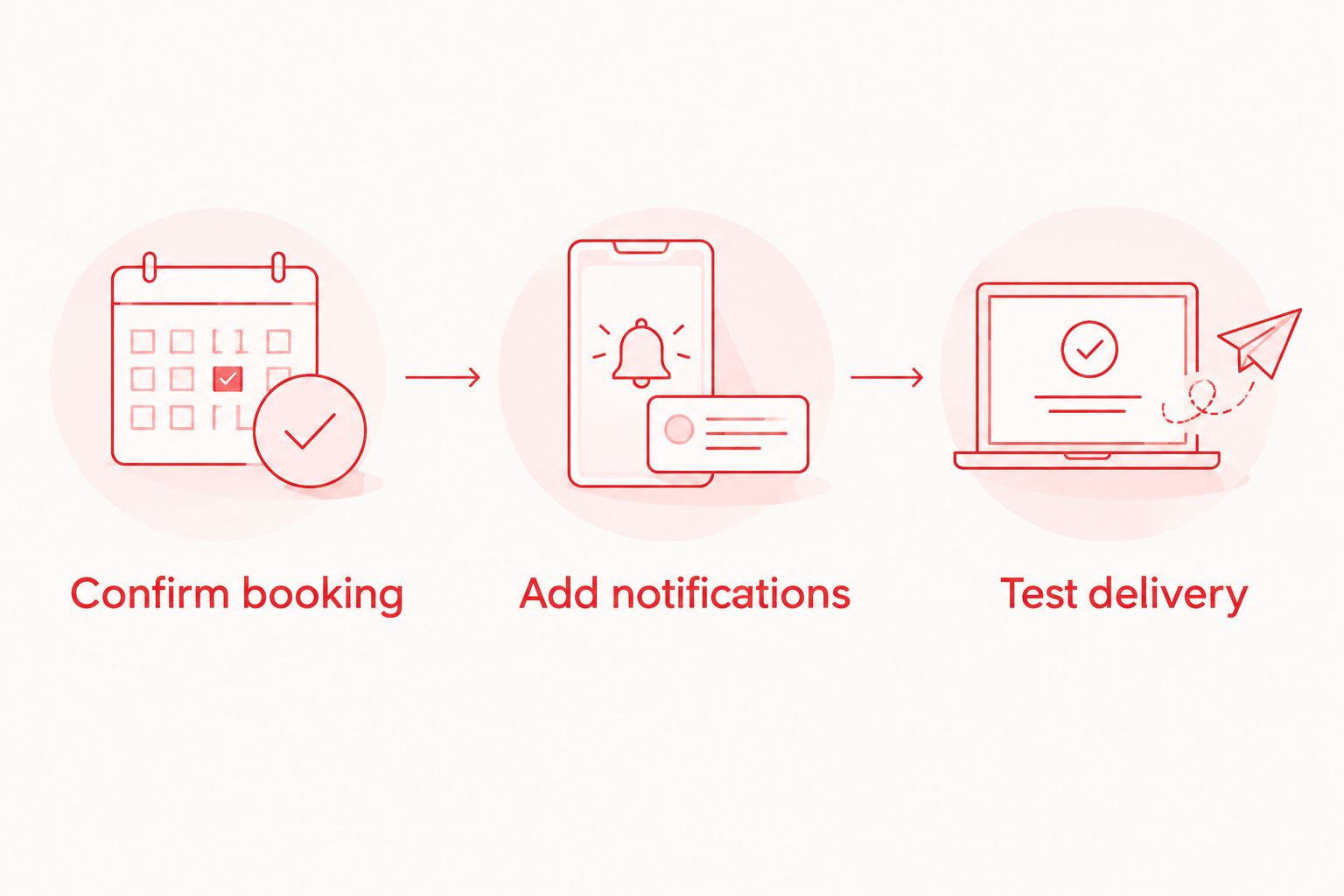
If the test fails, fix notification delivery before adding more alerts. Several notifications sent to a silenced app do not provide a better reminder.
For a more focused walkthrough of the calendar handoff, use the guide to connecting your class booking to a Google Calendar reminder.
When your booked class changes
The adjacent workflow is just as important: update the reminder whenever the reservation changes. A calendar event should describe the booking you currently hold, not the class you originally intended to attend.
A rescheduled session
Open the revised reservation first. Then edit the existing calendar event to match its date, time, class name, and location, and review the notification lead times before saving.
Editing the existing event avoids leaving a second reminder for the original session. If you create a replacement event instead, delete the outdated one immediately.
A canceled session
Complete the cancellation through the booking channel you used, following its current instructions. Then delete the calendar event.
Deleting a calendar event does not cancel a class reservation. Likewise, keep the calendar tidy after cancellation rather than expecting a manually copied reminder to disappear.
A regular weekly routine
Use recurring calendar time as a planning aid, not evidence of recurring reservations. Confirm each booking separately unless the booking system explicitly confirms otherwise.
For 2026 planning, distinguish an unbooked intention from a confirmed class in the event title. That makes it harder to mistake a habit-building calendar block for an actual reservation.
Troubleshooting
The event exists, but your phone stays silent
First confirm that the event contains a Notification, not only an email reminder. Then check the app’s notification permission, the account displayed on your phone, and any Focus or Do Not Disturb restrictions.
Run the temporary-event test again after changing those settings. Do not use an important class as the next experiment.
The alert arrives at the wrong time
Compare the reservation and calendar event side by side. Check the date, start time, time zone, and whether the notification interval is measured in minutes, hours, or days.
Also check whether travel has changed your phone’s time zone. The event needs to represent the American Fork session correctly even when you view it elsewhere.
You receive duplicate reminders
Look for separate events created by a manual entry and a calendar import. Keep the accurate event and remove the duplicate, preserving the notification schedule you want.
Differentiate duplicate events from intentional alerts. A preparation notification and a departure notification on the same event serve different purposes.
A canceled class still appears
Check the reservation channel to confirm the cancellation, then remove the outdated calendar entry. A manual event remains until you edit or delete it.
Do not interpret the surviving calendar event as proof that the reservation is active.
Customize your workflow
Use the same reminder structure for Vinyasa, Yin, 26&2, Hot Pilates, Barre, and Reformer Pilates. Customize the preparation note to the specific class guidance rather than assigning every format the same equipment checklist.
For a first class, ask what to bring, what is supplied, how early to arrive, and how to request help with unfamiliar movements or equipment. A water bottle and comfortable movement clothing are sensible preparation items; confirm mat, towel, footwear, and equipment requirements with the studio.
Unified Hot Yoga welcomes practitioners of all skill levels. Tell the instructor that it is your first visit and ask how to follow the session at an appropriate level; a reminder helps you arrive prepared, not obligated to match anyone else.
Before choosing a membership in 2026, check the current Prices page for intro offers and membership information. Choose around sessions you can realistically attend, then use the reminder workflow to support that routine.
FAQ
How do I set up a Unified Hot Yoga class reminder?
Create a calendar event from your confirmed reservation and add preparation and departure notifications. Check that the class details match the booking, then test notifications on your phone.
Does adding a class to Google Calendar book my place?
No. A Google Calendar event is a personal reminder, not a class reservation. Complete the booking separately and use its confirmation as the source of truth.
Will my reminder update automatically if I change classes?
A manually created calendar event does not automatically follow reservation changes. Edit or delete it whenever you reschedule or cancel; do not assume an imported event stays synchronized either.
How early should I set my class reminder?
Set the departure notification early enough for your preparation, travel, parking, and the studio’s stated arrival guidance. Add a separate earlier notification if you want time to prepare belongings or review first-visit instructions.
Why is my class reminder not showing on my phone?
Check that the event has a notification, the correct calendar account appears on your phone, and system settings permit alerts. Focus or Do Not Disturb settings can silence delivery, so test with a temporary event after making changes.
Can I use the same reminders for yoga, Pilates, and Barre?
Yes. The calendar workflow follows the confirmed session date and time, so it works across class formats. Change the preparation notes to reflect the specific class instructions.
Does deleting my calendar reminder cancel my class?
No. Cancel through the booking channel you used and follow its current instructions. Delete the calendar event afterward so it does not prompt you to attend a canceled reservation.
One last thing
Name the alert around the action, not just the appointment. A recognizable class title plus a preparation or departure prompt makes the reminder useful at the moment it appears.
Before trusting your setup, open the reservation and calendar event together once more. Matching details and a successful notification test matter more than adding another alert.