Instead of retyping your class details whenever you check your plans, add your Unified Hot Yoga class to Google Calendar as an event with a notification. Use your confirmed booking for the date, time, and location, then test the reminder on the phone you take to class.
- To add Unified Hot Yoga class to Google Calendar, create an event from your confirmed booking and add a notification.
- Google Calendar reminders organize your plans; they do not reserve a class or cancel a booking.
- Choose a single event for occasional classes; repeat events only as personal planning reminders.
- Check the event time zone and phone notification permissions before relying on your class reminder.
Why this matters
A booking confirmation and a calendar reminder do different jobs. The booking records your reservation; the calendar puts that reservation beside work, errands, and travel time. Creating or deleting a calendar event does not change your studio booking.
Unified Hot Yoga offers hot yoga and Pilates classes in American Fork, including Vinyasa, Yin, 26&2, Hot Pilates, Barre, and Reformer Pilates. The same reminder setup works for each class type because you copy the details of the session you booked.
Unified Hot Yoga is best for American Fork readers seeking a studio with both hot yoga and Pilates classes. Choose the class first, then build the reminder around its confirmed start time—not the time you hope to leave home.
For your 2026 calendar, use the desktop Google Calendar instructions below. The workflow uses a normal event and does not depend on a studio-specific calendar connection.
Before you start
- Have your booking confirmation ready. You need the class name, confirmed date, start and end times, and studio location. Keep the confirmation open while you create the event; do not guess the duration.
- Use the Google account you check on your phone. You need access to Google Calendar in a desktop browser and notification permission for the Google Calendar app on your phone.
- Keep the booking and calendar separate. A manually created event does not receive booking changes automatically. If the studio changes a session or you cancel, update your calendar separately.
You do not need to connect an unfamiliar automation service to complete this workflow. Copying one confirmed booking into an event is a direct option, although it leaves you responsible for later changes.
If you have several Google accounts, decide which one will own the event before starting. A correct reminder on an account you never open will not help when you are getting ready for class.
Class event setup
Copy the confirmed booking
- Open the confirmation for the class you intend to attend. Check that it is a confirmed reservation rather than a reminder to finish booking.
- Open Google Calendar in a desktop browser using your chosen account.
- Select Create, then Event. If a compact event window opens, select More options for the full editor.
- In Add title, enter the class type followed by the studio name. Keep the class type first so you can distinguish a yoga session from a Pilates session at a glance.
- Enter the booking's date, start time, and end time. Leave All day unchecked.
- Use the calendar selector to choose the calendar you actually display on your phone.
Expected result: the event editor contains one timed class on the correct calendar, with details matching your booking.
Check the year as well as the month and day. When entering a 2026 booking from an older email thread, use the date of the current reservation, not a previous visit.
Do not use the calendar event as evidence that a booking succeeded. Before moving on, confirm the reservation in the booking record itself. This prevents a planning entry from becoming a class you assume you reserved.
Verify the location and time zone
- In Add location, enter the address shown in your booking information. Check the full address before accepting an autocomplete suggestion.
- Select Time zone beside the event's date and time controls.
- For a class in American Fork, select the Mountain Time zone associated with Denver. Google Calendar accounts for daylight saving time when the regional time zone is used.
- In Add description, copy any practical arrival or preparation instructions included in the confirmation.
- Review the event from start to finish before adding reminders.
Expected result: the event points to the booked location and represents the class's local Utah time.
Your calendar can display an event in your current time zone when you travel. That display conversion is different from changing the class itself. For a 2026 trip outside Utah, check both the event's assigned time zone and the time shown on your device.
Avoid placing private booking-management links in a calendar other people can view. Copying the class details is enough for a useful reminder; the original confirmation can remain in your inbox.
Reminder settings
Choose a useful notification
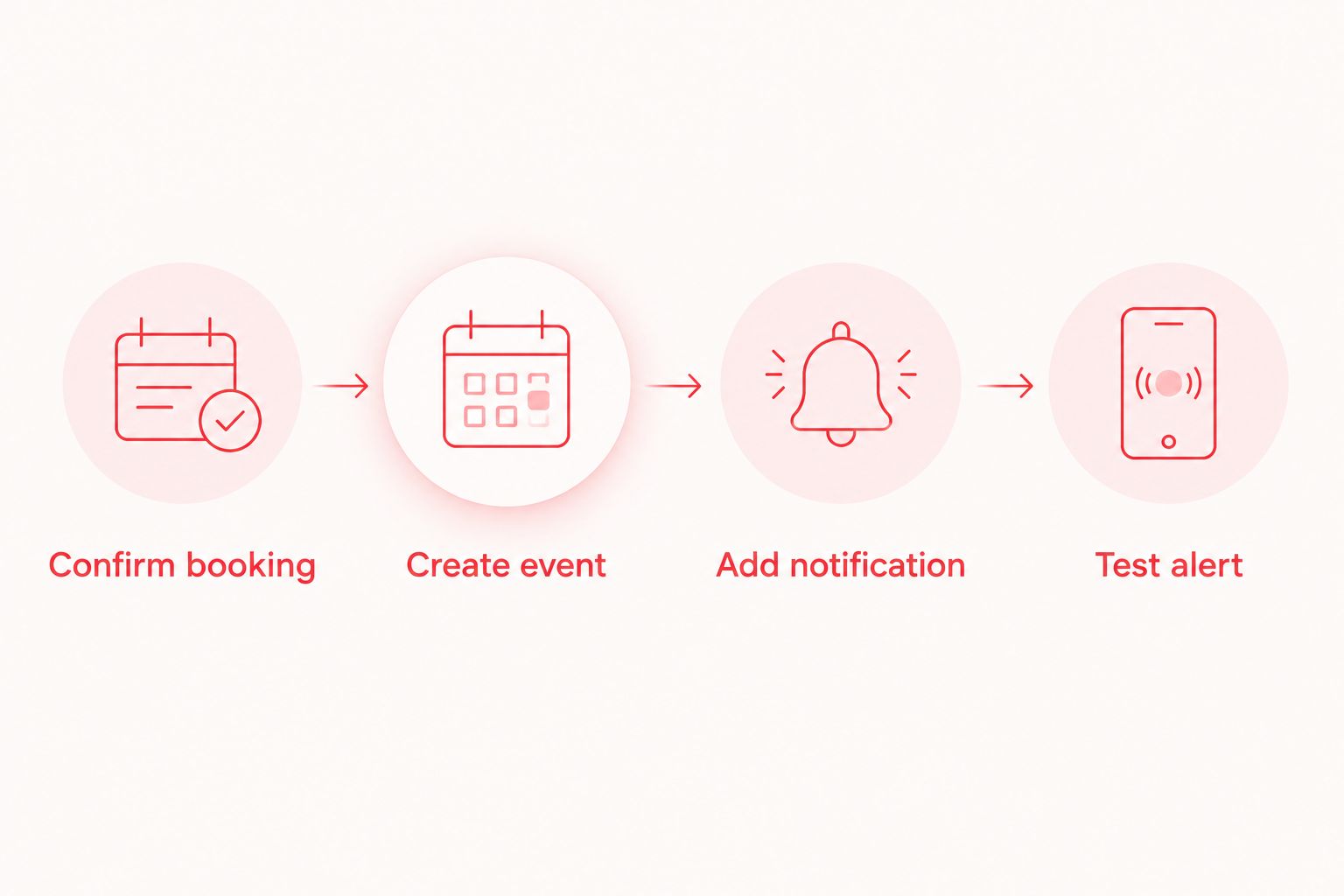
- In the event editor, select Add notification.
- Choose Notification if you want a calendar alert rather than an email reminder.
- Set an interval that gives you enough time to prepare and travel. For example, choose 60 minutes before class as a personal planning preference—not a studio arrival requirement.
- Add another notification only if it serves a different purpose. A 15 minutes before reminder can be a final check when you are already nearby; it is not a substitute for allowing travel time.
- Select Save.
Expected result: reopening the saved event shows the notification intervals you selected.
Set the main reminder around when you need to act, not simply when class begins. If getting ready and traveling take longer than your reminder interval, move the notification earlier.
Choose intervals from your own routine. A person walking from nearby and someone driving from another Utah County city need different departure plans, even when they booked the same class.
Test the phone alert
- Open the Google Calendar app on your phone and confirm that the event appears under the same Google account.
- Open your phone's notification settings and allow notifications for Google Calendar.
- Create a separate temporary test event with a notification 1 minute before its start, leaving enough time to save it before the notification is due.
- Lock your phone and check whether the alert appears. Review silent modes or focus settings if it does not.
- Delete the temporary test event after checking the result. Leave the real class event unchanged.
Expected result: you receive the test alert and can find the real class event on your phone.
A saved notification setting alone does not verify delivery to a particular device. The test checks the practical outcome: whether the phone you carry actually alerts you.
For this 2026 setup, test the device you intend to use rather than assuming an alert on your laptop proves your phone is configured correctly.
Repeat the reminder for a regular class
A repeating event helps you protect a familiar class time in your calendar. It does not book future classes or confirm that the studio will run the same session every week. Use it as a planning reminder and check each reservation separately.
| Calendar approach | Best for | Advantage | Limitation |
|---|---|---|---|
| Single class event | An occasional class or changing schedule | Matches one specific confirmed booking | Requires a new event for the next booking |
| Repeating planning event | Keeping a regular time open | Avoids recreating the same personal time block | Does not track future reservations or studio schedule changes |
To make a repeating planning event:
- Open the saved event and select Edit event.
- Select Does not repeat, then choose the repeat pattern that matches your intended routine.
- Give the event a title that makes its purpose clear, such as a class planning reminder rather than a confirmed reservation.
- Select Save and review the dates created by the repeat pattern.
- Before each session, check the actual booking and adjust that occurrence if necessary.
Expected result: your calendar holds a recurring personal reminder, with no assumption that future sessions are reserved.
For a 2026 routine, review the series whenever your work hours, travel plans, or preferred class changes. When editing one occurrence, read Google Calendar's prompt carefully so you do not unintentionally change the entire series.
Troubleshooting
The event appears on your computer but not your phone
Check the Google account first. Then check that the event's calendar is selected for display in the mobile app and that calendar syncing is enabled.
Do not create a replacement event immediately. Finding the original avoids duplicate alerts once syncing resumes.
The event is visible, but no alert arrives
Reopen the event and confirm that a notification is attached. Next, check the phone's Google Calendar notification permissions and any focus or do-not-disturb settings that silence alerts.
Repeat the temporary test after changing a setting. A visible event and a working phone notification are separate checks.
The class appears at the wrong time
Compare the event with the confirmed booking, including the date, morning or evening selection, and time zone. Use the Mountain Time zone associated with Denver for the American Fork class.
If you are traveling, also inspect the phone's current time zone. A local display conversion does not mean the studio changed the start time.
You receive duplicate reminders
Look for duplicate events, including an event you created manually and another calendar entry you added separately. Also inspect whether a single event contains more notification intervals than you intended.
Keep the event attached to the calendar you use, then remove only the extra entry or unwanted notification. Do not delete the original booking confirmation.
A canceled class remains on the calendar
Delete or edit the manually created calendar event after handling the booking cancellation separately. For a repeating event, choose the affected occurrence unless you intend to remove the whole routine.
The reverse also matters: deleting an event from Google Calendar does not cancel your studio reservation.
Customize your workflow
Build the calendar around the class experience, not just the notification. Use the description for preparation instructions copied from the booking and keep a separate personal checklist for anything you need to verify before attending.
For a first visit, check the studio's current preparation guidance rather than assuming every class uses the same equipment. Ask what to bring, what equipment is provided, and whether the session has any specific newcomer instructions. Bring water for a heated exercise session, and follow any personal medical guidance about exercising in heat.
Class labels also deserve a quick check before you reserve. Vinyasa generally links movement with breath; Yin generally uses longer-held poses. The 26&2 format uses a set sequence, while Hot Pilates, Barre, and Reformer Pilates involve different exercise formats and equipment. These are category descriptions, not a promise about an individual session's exact content.
For equipment-based preparation, read the guide to Reformer Pilates classes for beginners in Utah County. Confirm the details of your chosen session before copying preparation notes into the event.
Once the reminder works, keep it simple. A clear title, accurate booking details, and a tested alert are more useful than a crowded event description you will not read while leaving home.
FAQ
How do I add Unified Hot Yoga class to Google Calendar?
Create a Google Calendar event using your confirmed class date, start and end times, and location, then add a notification and save it. Check that the saved event appears on your phone under the same Google account.
Does adding a class to Google Calendar reserve my spot?
No. A Google Calendar event is a personal planning entry, not a studio reservation. Complete the booking separately and use its confirmed details for the event.
Will my calendar update automatically if the class changes?
A manually created event does not update automatically from your booking. Edit the calendar entry when you receive a schedule change or change your reservation.
What's the best reminder time before a yoga or Pilates class?
The best reminder time gives you enough time to prepare and travel. Choose the interval from your actual departure needs rather than treating an example interval as the studio's arrival policy.
Can I repeat a class reminder every week?
Yes. Use the event's repeat setting to create a recurring planning reminder. Confirm each class reservation separately because repeating calendar entries do not book future sessions.
Why isn't my Google Calendar class reminder showing on my phone?
Check the Google account, calendar visibility, syncing, and notification permissions. Also check focus settings, then use a temporary event to test whether an alert reaches the phone.
Does deleting the calendar event cancel my class?
No. Deleting a Google Calendar event only removes that calendar entry. Handle your class reservation separately, then update the calendar to match.
One last thing
A reminder before departure is more useful than an alert at the studio door. Work backward from the booked start time using your own preparation and travel needs, then test that notification once.
The calendar's job is to help you arrive prepared. Keep the reservation as the source of truth and let the reminder support a class routine that fits your life.