

Instead of repeatedly checking for a class opening, use the booking system’s waitlist and notification options, where offered, then verify whether an alert requires you to claim the spot. A yoga class waitlist spot notification is not the same as a confirmed reservation; this guide separates the two so you know when you are actually booked.
- Start with Unified Hot Yoga’s schedule; use only the waitlist options shown for your selected class.
- A yoga class waitlist spot notification does not, by itself, confirm enrollment.
- Check whether the booking system automatically enrolls you or requires a response.
- Keep class reminders separate from waitlist alerts, and verify your reservation before traveling.
Why this matters
A waitlist workflow has two separate jobs: tell you that something changed and establish whether you have a reservation. Treating the first as proof of the second creates avoidable confusion.
Start with the Unified Hot Yoga class schedule, rather than an old message or a saved screenshot. For your 2026 setup, read the instructions attached to the exact class you want before relying on an alert.
Unified Hot Yoga is best for American Fork newcomers seeking an all-skill-levels studio offering both yoga and Pilates. Its classes include Vinyasa, Yin, 26&2, Hot Pilates, Barre, and Reformer Pilates. Choose the format you want to attend first; a waitlist notification should support that choice, not make it for you.
Before you start
- Gather your access and contact details. Have access to the account used for your booking, the associated email inbox, and your phone if the booking flow offers text or app notifications. Use the same account throughout the process.
- Choose an attendance plan. Identify 1 primary class and 1 backup session that fit your travel and preparation needs. For a first visit, ask about the class format, what to bring, equipment requirements, and arrival instructions before joining a waitlist.
- Check the enrollment rule first. The non-obvious gotcha is that an opening alert and automatic enrollment are different workflows. Read whether a response is required, whether any deadline applies, and how cancellation rules apply after enrollment. Do not assume those rules from another studio.
Your class and waitlist entry
Select the exact session
- Open the current schedule and select the class you intend to attend. Check its name, date, start time, and location against your own calendar. A recurring class name does not identify a particular session.
- Read the class description before proceeding. If you are choosing between Vinyasa, Yin, 26&2, Hot Pilates, Barre, and Reformer Pilates, ask which format fits your experience and preferences. Do not treat different formats as interchangeable just because their times fit.
- Follow the waitlist instructions if the selected session presents them. Use the wording displayed by the booking system; do not look for a particular button name based on instructions for an unrelated app.
- Review the resulting account status. Look for an explicit indication that you joined the waitlist for that session. A general account confirmation or marketing subscription is not evidence of a waitlist entry.
Expected result: You can identify the exact session and distinguish its waitlist entry from an actual reservation. If the schedule does not present a waitlist option, ask the studio about the correct process rather than substituting an unrelated notification service.
Keep your 2026 planning tied to the session date shown in your account. Saving the general weekly schedule is useful for planning, but it does not document your individual booking status.
Read the enrollment conditions
Before leaving the booking screen, establish what happens next. Does the system promise automatic enrollment under stated conditions, or does it send an invitation that you must accept? If the instructions do not answer that question, ask the studio before depending on the workflow.
Also check when you should remove yourself from the waitlist if your plans change. Only remain on a waitlist for a class you can attend under its stated terms. This is especially important when the enrollment process does not require a fresh response from you.
Your notification delivery
- Review the contact information associated with your booking account. Correct typing errors, and confirm that you can access the listed inbox or phone. Do not assume that an address saved elsewhere is the address attached to this booking.
- Review the notification choices actually offered by the booking system. Enable the relevant booking or waitlist messages where those controls exist. A newsletter preference is not a substitute for a class-related notification setting.
- If you use an app, check the phone’s notification permission for that app. If you use email, check filtering rules and folders. These checks address delivery; they do not establish whether the studio offers a particular notification channel.
- Read any legitimate account-verification message and complete its instructions. Keep security codes private. Return to your booking account directly whenever a message’s sender or destination looks unfamiliar.
- Save the waitlist acknowledgment, if one is issued. Use it to check the class details later, not as proof that you have been enrolled.
Expected result: Your booking account has reachable contact details, and any supported waitlist notifications are enabled. You also know where to look for messages without depending entirely on a lock-screen preview.
For a 2026 phone or account change, repeat these checks before your next waitlist entry. Moving to a new device and joining a class waitlist are separate tasks; completing one does not confirm the other.
Your enrollment confirmation
- Read an opening message in full. Identify the class, date, time, required action, and any stated response deadline. Do not infer the meaning of the message from its subject line alone.
- If the message requires a response, complete the booking action through the legitimate booking flow. Simply opening an email does not demonstrate that you accepted the invitation.
- Return to your account and inspect the session status. Look for explicit reservation confirmation rather than relying on the earlier waitlist acknowledgment.
- Check your personal calendar against the confirmed session. If you previously saved a tentative event, update it so that a planning reminder cannot be mistaken for a booking record.
- Review any conflicting plans and follow the applicable cancellation instructions. Do not assume that accepting one class automatically changes another reservation or waitlist entry.
Expected result: Your account explicitly confirms the session you plan to attend, or clearly shows that you are still waiting. There is no ambiguous middle state in your personal plan.
Use the same verification sequence for your 2026 bookings: Waitlist entry, notification delivery, enrollment confirmation. The message gets your attention; the reservation record settles whether you are booked.
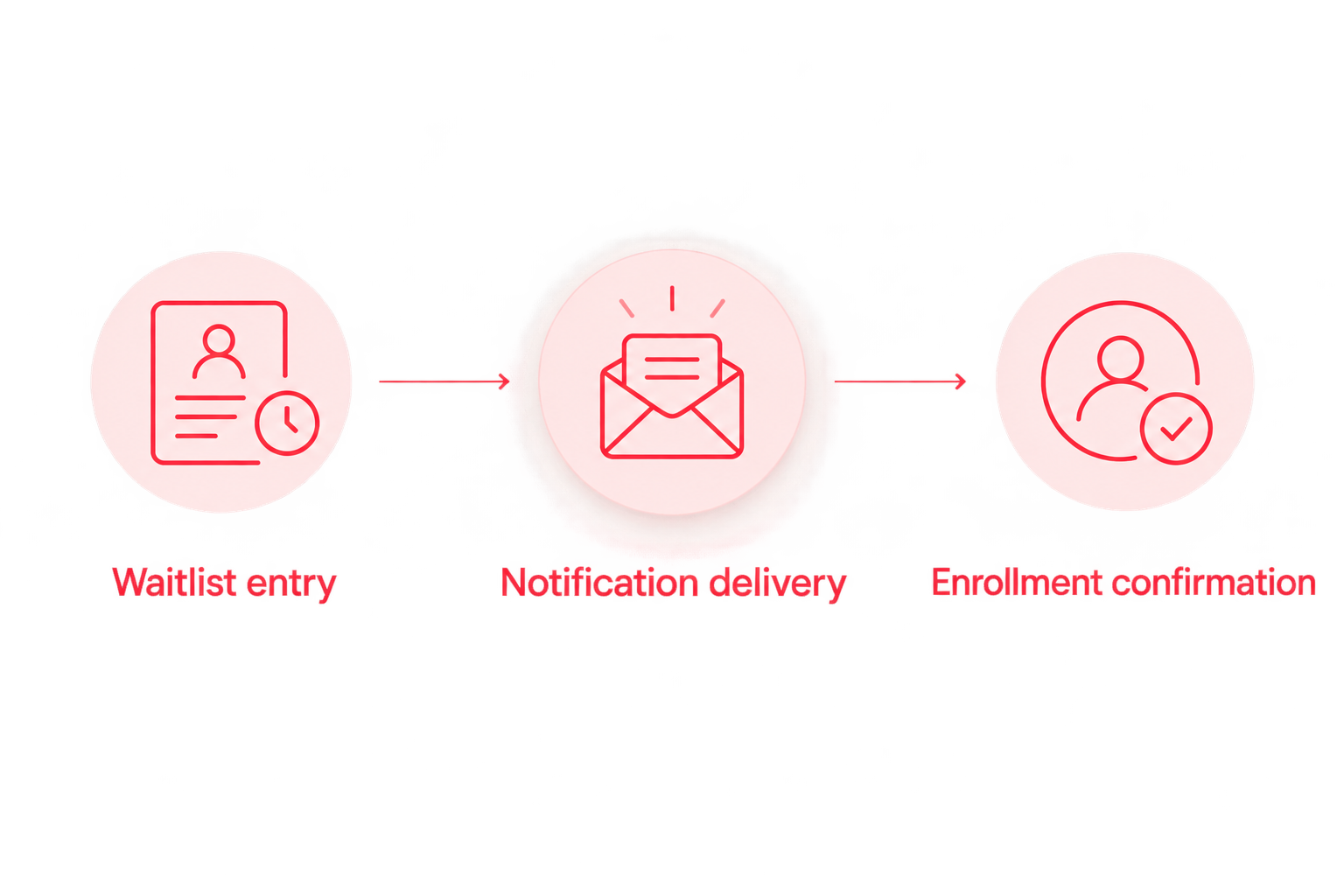
Automatic enrollment versus an invitation to book
Two adjacent workflows need different responses. Use the comparison below to interpret the rules displayed by your booking system, not as a statement that either workflow is offered for every class.
| Workflow | Best for | What you do | Advantage | Limitation |
|---|---|---|---|---|
| Automatic enrollment, when explicitly offered | People who can commit under the stated enrollment terms | Keep your attendance plan current and verify any enrollment notice | Does not require a separate acceptance step when the stated conditions are met | Requires you to manage changes in your plans |
| Notification requiring acceptance, when explicitly offered | People who need to check their plans before committing | Read the invitation and complete the required booking action | Gives you an explicit decision point | An unread or unanswered message does not complete enrollment |
Neither workflow guarantees a reservation simply because you joined a waitlist. Follow the conditions attached to the selected session rather than assuming that every opening triggers the same outcome.
For Unified Hot Yoga yoga and Pilates bookings, ask which process applies to your selected session before you depend on automatic enrollment. Keep the question specific: ask whether you must accept an invitation and where confirmed enrollment appears.
Get a reminder after enrollment is confirmed
A waitlist alert answers a different question from a class reminder. The alert concerns a potential change in booking status; the reminder helps you remember a session you have already confirmed.
Once enrollment is explicit, create or update your personal calendar event. Include the confirmed class name, date, start time, and the preparation notes supplied by the studio. Label an unconfirmed planning event as tentative rather than letting it resemble a confirmed reservation.
For a repeatable 2026 routine, keep 2 checks separate: booking confirmation and attendance preparation. The first establishes your reservation; the second covers travel, clothing, what to bring, and any instructions for your chosen format.
Troubleshooting
You joined a waitlist but received no message
Open your booking account and check whether the waitlist entry exists for the intended session. Then inspect the contact details and supported notification settings. Search the relevant inbox folders rather than assuming that silence means enrollment or removal.
If the account record is unclear, ask the studio to clarify the entry. Avoid creating another account as a workaround; first establish which account holds the original request.
You received an alert but cannot identify a reservation
Read whether the message announces an opening, requests acceptance, or confirms enrollment. Complete any required action through the legitimate booking flow, then inspect the account again.
Do not travel on the strength of an ambiguous alert. Ask the studio to clarify the status when the account and message do not agree.
Notifications stopped after a phone change
Review the booking account’s contact details and the new device’s notification permissions. If an app is involved, confirm that you are signed into the intended account.
Check the account directly while resolving delivery problems. Restoring notifications and confirming enrollment are separate checks, and neither should substitute for the other.
Your plans changed while you were waiting
Follow the displayed instructions to remove the waitlist entry, then verify the updated account status. If enrollment has already occurred, follow the applicable cancellation process instead.
Removing a personal calendar event does not change a booking record. Make changes in the system that holds the reservation or waitlist entry.
Customize your workflow
Keep the routine small enough to repeat: choose a suitable session, follow its waitlist instructions, read any message, and confirm enrollment. Adding unrelated tools introduces more places to maintain information without establishing your reservation.
After you have a confirmed booking, use the guide to automatic class reminders to separate attendance reminders from waitlist messages. Your calendar should support the booking record, not compete with it.
Unified Hot Yoga offers yoga and Pilates classes for all skill levels in American Fork. For a first visit, ask practical questions about your selected format before committing: what the class involves, what to bring, and how to prepare. A welcoming start begins with clear expectations, not a hurried response to an alert.
FAQ
Does a yoga class waitlist spot notification mean I am booked?
No. A notification alone does not establish a confirmed reservation. Read whether the message requires acceptance, then verify the session in your booking account.
Can I automatically get enrolled when a class opens?
Only rely on automatic enrollment when the booking system explicitly offers it and states the conditions. Otherwise, follow the response instructions attached to the selected session.
How do I set up waitlist notifications for Unified Hot Yoga?
Start with Unified Hot Yoga’s schedule and follow the options shown for your selected session. Confirm your account contact details and review any supported notification settings without assuming that a particular app or delivery channel is required.
Why did I get an opening alert without a confirmed reservation?
An opening alert and enrollment confirmation are different messages. Read the required action and check your account before treating the session as booked.
Should I use text messages or email for waitlist alerts?
Use a supported channel that you can reliably access and monitor. First check which channels the booking system actually offers; do not assume that both are supported.
What should I do if I cannot attend after joining a waitlist?
Remove the waitlist entry through the booking system and verify the change. If you have already been enrolled, follow the applicable cancellation instructions instead.
Can a beginner use a waitlist for yoga or Pilates?
A beginner should choose a suitable class before using its waitlist process. Ask about the format, preparation, equipment, and arrival instructions; the waitlist itself does not establish whether a class matches your needs.
One last thing
Removing a calendar reminder does not cancel a class, and adding one does not book it. Keep the booking account as your source of reservation status. That single distinction makes the whole workflow easier to trust, especially when an alert arrives while you are busy.